
Check what is waiting to send
What this page is for
You use this page to check if your work has reached the server. The phone app saves some work on the phone first. It sends it later when there is internet. The sync screen shows what has been sent and what is still waiting.
When to use it
- You worked with no internet and want to know it was sent.
- A signal came back and you want to send now.
- The app says some items need attention.
Before you start
- This screen is on the Android app. The web does not have it.
- To send, the phone needs an internet connection.
- You must be signed in.
Steps
This is done on the phone. See the next section.
On the phone app
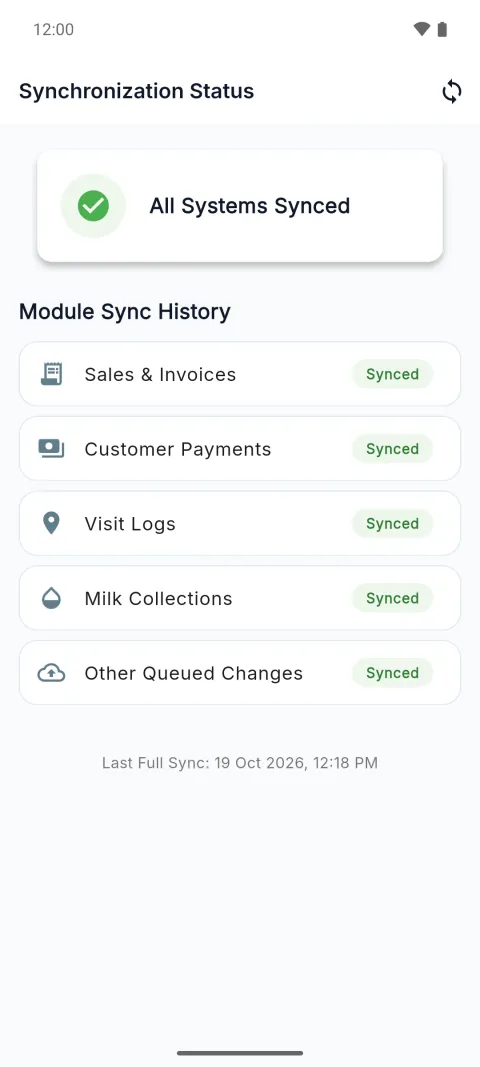
- Open the sync screen. Tap the round arrows at the top right of the Home screen. Or tap More, then Sync Settings.
- Read the big card. All Systems Synced means everything has been sent.
- Read Module Sync History. It has a line for Sales & Invoices, Customer Payments, Visit Logs, Milk Collections and Other Queued Changes.
- Look at the tag on each line. Synced means sent. A tag such as 3 Pending means three items are still waiting.
- Read Last Full Sync at the bottom. It shows the date and time of the last send.
- To send now, tap the round arrows at the top right of this screen.
Other cards you may see are Syncing…, Sync Error and System Idle. The app can also show a small bar. It says things like Offline · 3 waiting to send. If the server refused something, the bar says how many items need attention. Tap it to fix them. You can discard an item that the server refused. It is then removed from the phone for good.
Check it worked
All lines show Synced. The card says All Systems Synced. Last Full Sync shows the time you just sent.
Common mistakes
- Closing the app and thinking the work is lost. Work saved on the phone stays there until it is sent.
- Discarding an item too fast. A discarded item never reaches the server.
- Waiting without a connection. Nothing is sent until the phone is online again.
- Doing an online task offline. Some screens need a connection. They show a message instead of saving.
Questions
What works without internet? These are saved on the phone and sent later:
- Counter sales, with cash, UPI, split payments or credit.
- Printing a receipt.
- Adding a customer.
- Collecting a payment from a customer.
- Sales orders.
- Adding or changing a product.
- Stock coming in, stock adjustments and damaged stock.
- Expenses. A receipt photo needs a connection.
- Van route visits.
- Returns of bills made on this same phone.
- Opening and closing your cash shift.
What needs internet?
- Milk collection. The rate and the slip number come from the server.
- Signing in for the first time, and the first download of your data.
- Returns of bills made on another device.
- Label printing.
- Stock transfers and stocktakes.
- Purchases and supplier payments.
- Van screens, such as My Van, load sheets and settlement.
- Reports.
- Business settings, such as branding, users and roles.
Can two phones make the same bill number? It is very unlikely. The app gives each phone its own bill numbers.
Related pages
Checked against the app on 2026-10-19 (version 6a6df7a)