
Find your way around
What this page is for
You use this page to learn where things are. It shows the web menu and the phone’s bottom bar. It also shows the More screen on the phone.
When to use it
- You cannot find a screen you used before.
- You are new and want a map of the app.
- You use a tablet and the menu looks different from a phone.
Before you start
- Sign in first. See Sign in.
- Your menu can be shorter than the one in this guide. Some items show only when that module is on for your business.
- A module is a part of Vistaar360 that you can switch on, such as milk collection or van distribution.
Steps
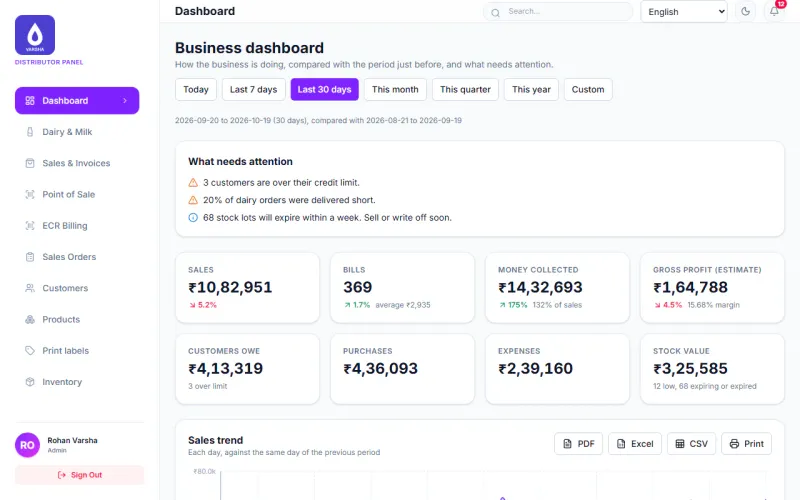
- Look at the menu on the left. It lists the parts of the web app, such as Dashboard, Sales & Invoices, Customers, Products and Inventory.
- Click a name to open that part. The open part is highlighted in purple.
- Scroll the menu to see more. Further down it also has parts such as Purchases, Expenses, Returns, Payments, Reports and Settings.
- Look at the top bar. The title of the open part is on the left.
- Use the language box in the top bar to change the language. See Change the language.
- Click the moon button to switch to the dark theme. The same button then switches back to the light theme.
- Click the bell to see your alerts. The number on the bell shows how many there are.
- To leave, click Sign Out at the bottom left of the menu.
On a small screen, the menu is hidden. Use the Open menu button to show it. The Search… box at the top does not search the app yet.
Some parts show only when a module is on. These are Dairy & Milk, Vans, Route Planning, GST Returns, Fresh Produce, Dairy Distribution, Credit Profile and Customer Portal.
On the phone app
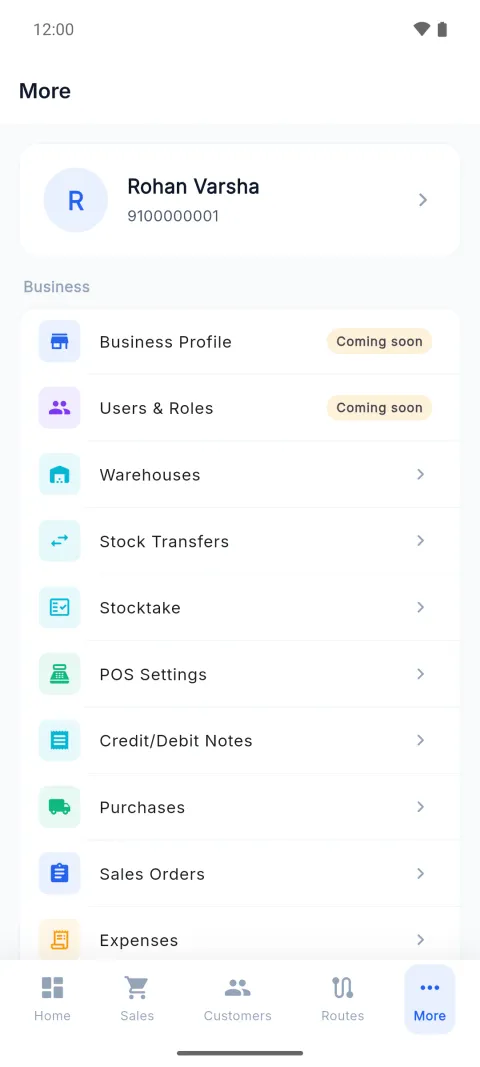
- Look at the bar at the bottom. It has Home, Sales, Customers, Routes and More. Tap a name to open it.
- If your business does not use routes, the Routes button is not shown.
- Tap More for everything else.
- At the top of More you see your name and phone number.
- Scroll through the groups Business, App and Support. Tap a line to open it.
- To leave, scroll to the bottom and tap Logout.
Some lines show only when a module is on. These are My Van, Milk Collection, Dairy Distribution and Fresh Produce.
On a wider screen, the bottom bar changes. A tablet shows a side strip of icons. A very wide screen shows the full menu. Phones are narrower than 600 pixels. The side strip starts at 600 pixels. The full menu starts at 900 pixels.
Check it worked
On the web, the part you clicked opens and its name is in the top bar. On the phone, the button you tapped is highlighted and its screen opens.
Common mistakes
- Looking for a screen that is not in your menu. Its module may be off. Ask your owner.
- Tapping Business Profile or Users & Roles on the phone. They have a Coming soon label. They open a page that says the same. Use the web for them.
- Tapping Warehouses, Notifications, Help & FAQ, Send Feedback or About. They do not open a screen yet.
- Looking for Settings on the phone. The phone’s More screen holds the settings. The web has Settings in its menu.
Questions
Why is my menu shorter than my friend’s? Each business switches on its own modules. Your menu shows only yours.
Is there a Windows app? Yes. It is in beta. At 900 pixels wide or more, it shows a side menu like the one on a wide tablet.
Related pages
Checked against the app on 2026-10-19 (version 6a6df7a)