
Register your business
What this page is for
You use this page to register your business on Vistaar360. You fill in a form on the web page and check your phone number with a code. After that, your business waits to be approved.
When to use it
- Your business is new to Vistaar360 and has no account yet.
- You are the owner, and you want to be the first person to sign in.
Before you start
- Use a computer or a phone browser. Registration is done on the web. The phone app does not have this screen.
- Keep your phone with you. You will be asked for a code to check the number you type. Ask your administrator if you do not know how the code is sent.
- Have your business name, city, state and 6-digit pincode ready.
- GSTIN and PAN are optional. Add them if you have them.
- You need an internet connection.
Steps
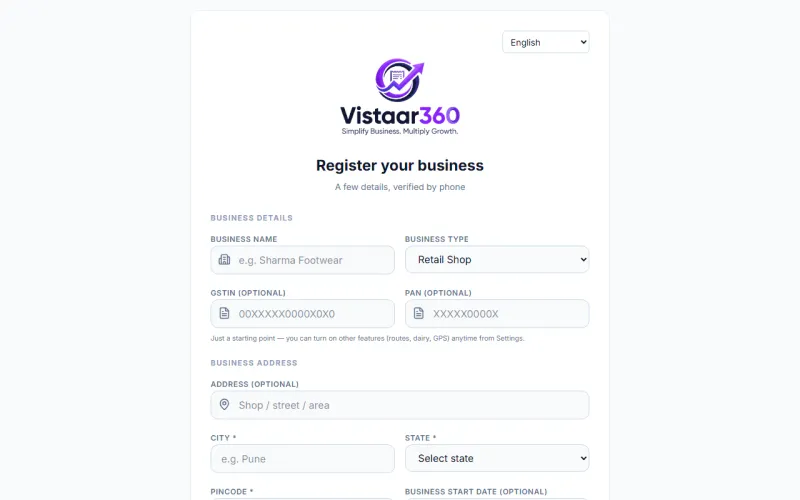
- Open the Vistaar360 web page. Click Register here under the sign-in box.
- Under Business details, type the Business name.
- Choose the Business type. The choices are Retail Shop, FMCG / Van Distributor, B2B Wholesaler and Milk / Dairy Collection.
- Type your GSTIN (optional) and PAN (optional) if you have them.
- Under Business address, type the Address (optional).
- Type the City. Choose the State. Type the Pincode. These three are required.
- If you want, choose a Business start date (optional).
- Under Contact & owner, type Your name and your Phone number.
- If you want, type an Email (optional), Alternate phone (optional) and Website (optional).
- If a list called Modules you would like is on the screen, tick the modules you want to use.
- Tick the box that says you agree to the Terms and Privacy Policy.
- Click Send verification code.
- Type the code from your phone. Click Verify & create account.
The business type is only a starting point. You can turn on other features later in Settings.
On the phone app
This is done on the web. The phone app does not have this screen.
Check it worked
A new business is not opened at once. You see Thank you, we have your details. The screen says your business is waiting for approval. When it is approved, you can sign in with the same phone number. Click Go to sign in.
Common mistakes
- “City, state, and a valid 6-digit pincode are required.” Fill in all three. The pincode must have exactly 6 digits.
- “You must accept the Terms & Conditions to continue.” Tick the agree box.
- “Could not send verification code.” Check the phone number and try again.
- “Could not verify code. Please try again.” The code was wrong or too old. Go back and ask for a new one.
- Signing in before approval. It does not work. The screen says your business is waiting for approval.
- “Your registration was not approved.” The message may give a reason. Contact support.
Questions
Who approves my business? The team that runs Vistaar360 for you reviews the request. This page does not say how long it takes.
Do I pay for the modules I tick? Ticking only asks for them. The screen says your modules and any trial are confirmed when your business is approved. Some modules show a price per month next to the name.
Can I turn on more features later? Yes. The screen says you can turn on other features, such as routes, dairy and GPS, from Settings.
Related pages
Checked against the app on 2026-10-19 (version 6a6df7a)