
Your home screen
- Needs permission: dashboard.view
What this page is for
You use this page to read your home screen. It shows how the business is doing in one place. The web and the phone show different things. This page explains both.
When to use it
- You want to see sales and money collected.
- You want to see what needs your attention today.
- You want a quick way to start a new sale on the phone.
Before you start
- Sign in first. See Sign in.
- The web dashboard needs the dashboard permission. Ask your owner if you cannot see it.
- All the numbers come from bills, payments and stock that Vistaar360 already holds.
- Some sections show only when that module is switched on for your business.
Steps
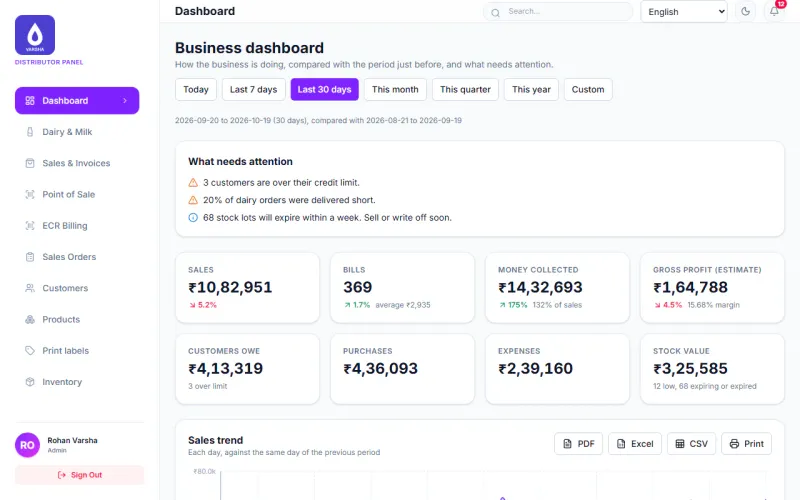
- Sign in on the web. The Business dashboard opens first.
- Choose a period at the top. The choices are Today, Last 7 days, Last 30 days, This month, This quarter, This year and Custom. Last 30 days is chosen at first.
- Read the dates under the buttons. They show your period and the period before it.
- Read What needs attention. Each line is a plain sentence, such as customers over their credit limit.
- Read the number tiles. They show Sales, Bills, Money collected, Gross profit (estimate), Customers owe, Purchases, Expenses and Stock value.
- Look at the small green or red number on a tile. It compares your period with the period just before.
- Scroll down to Sales trend. It shows each day against the same day of the period before.
- To keep a report, click PDF, Excel, CSV or Print on a section.
Gross profit (estimate) is only an estimate. It uses today’s cost prices. It is not an accounting figure.
On the phone app
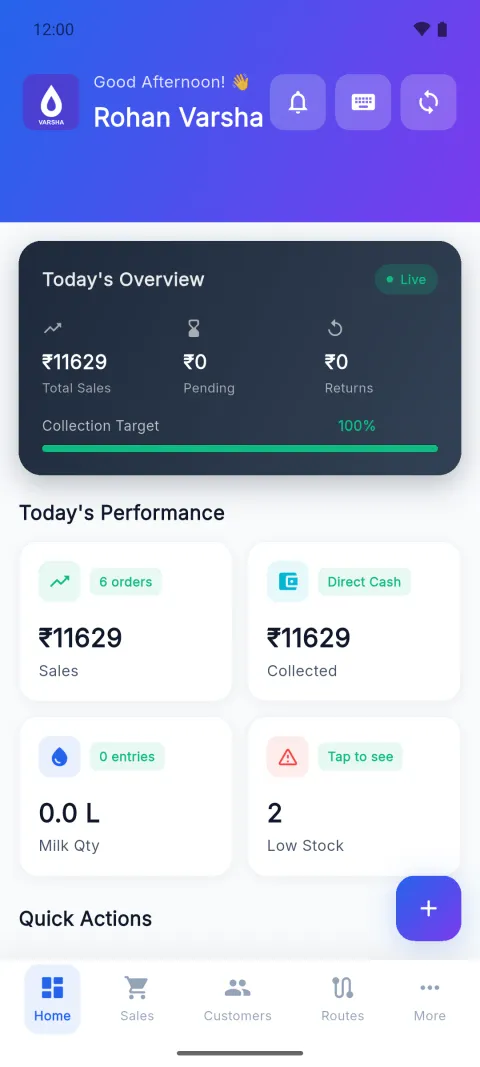
- Sign in on the phone. The Home screen opens.
- Read the greeting and your name at the top. Your business logo is at the left of the blue banner.
- Read the dark card Today’s Overview. It shows Total Sales, Pending, Returns and Collection Target.
- Read Today’s Performance. It has four tiles: Sales, Collected, Milk Qty and Low Stock.
- Tap the Low Stock tile to see the products that are running low.
- To start a bill, tap the round + button at the bottom right. It has no words on it. See Make a new sale and take payment.
- Scroll down. Below the tiles you find Quick Actions and Recent Activity.
The three buttons at the top right of the blue banner are the bell, the keyboard and the sync button. The keyboard button shows the keyboard. The sync button opens the sync screen. See Check what is waiting to send. The bell button does not open anything yet.
Check it worked
On the web, you see tiles with rupee amounts and the dates of your period. On the phone, you see today’s totals. The Live label is on the Today’s Overview card. If the numbers look empty, you may have no bills yet for that period.
Common mistakes
- Reading the phone numbers as the whole business. The phone tiles are for today only. The web shows the period you choose.
- Trusting the profit figure as final. It is an estimate.
- Milk Qty shows 0.0 L. That is normal when you have no milk entries today.
- Expecting Returns to move on the phone card. The Returns figure on Today’s Overview is always 0 for now. The app does not add it up yet.
- Looking for the web dashboard on the phone. The phone has its own Home screen. It is not the same as the web dashboard.
Questions
Why does Collection Target say 100%? The app works it out from today’s bills. It is the share of today’s sales that is already paid.
Does the dashboard use my own time? Dates follow the business time zone. India is the default.
Why are some sections missing? Milk collection, dairy distribution and fresh produce sections show only when those modules are on.
Related pages
Checked against the app on 2026-10-19 (version 6a6df7a)